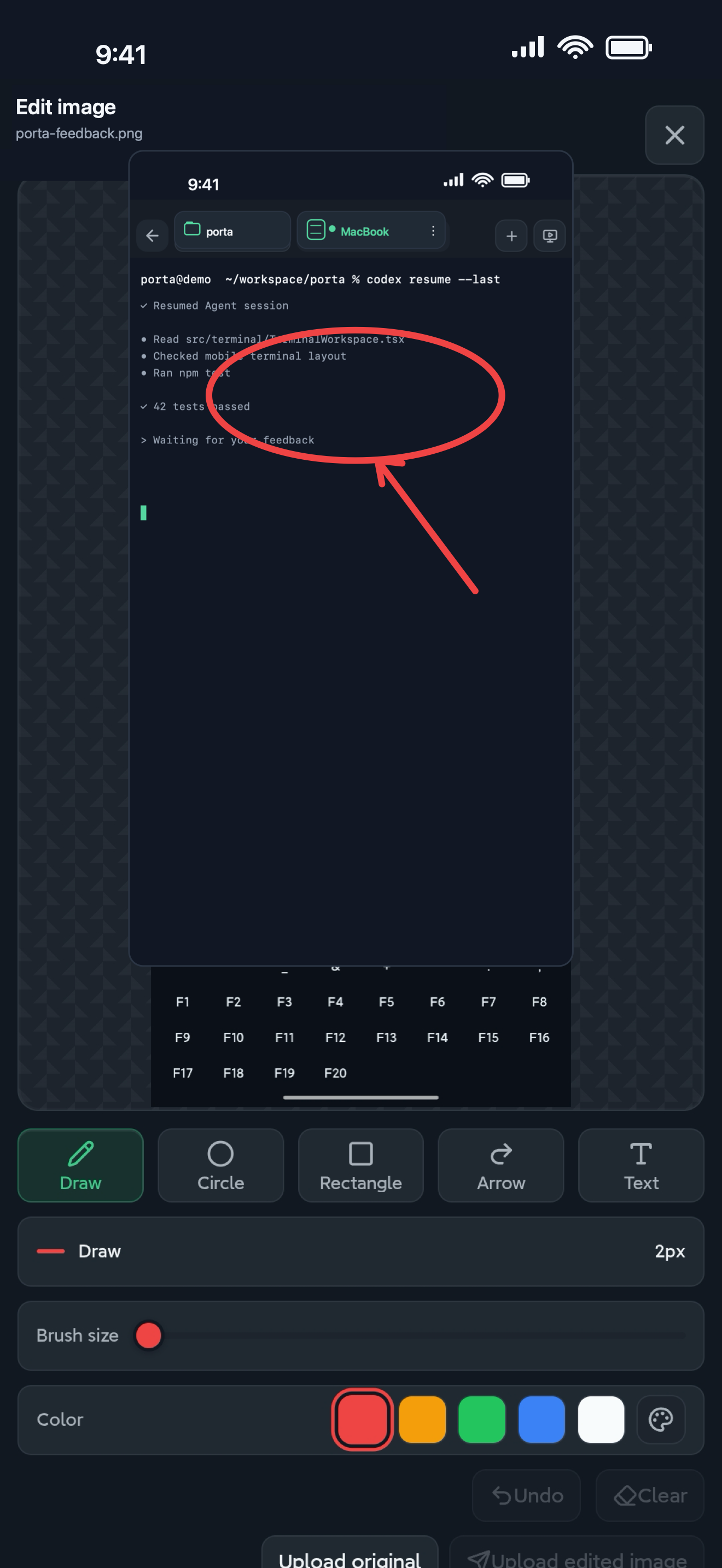
Replace vague bug descriptions with evidence
“The spacing looks wrong” forces an Agent to guess. A screenshot with the exact region marked gives the remote task a concrete state, location, and visual target.
- Capture the product state on the device where it failed.
- Mark the relevant region before sending.
- Add a concise instruction that says what should change.
Keep the handoff attached to the task
Porta routes the feedback through the remote work context instead of treating the image as a disconnected chat attachment. The Agent can continue from the same project and terminal state that produced the build.
- Return to the right Host, Project, tmux session, and Agent task.
- Send text, screenshots, files, or annotations as the situation requires.
- Review the next build through the same Product Preview request flow.
A product loop, not an image gallery
Visual feedback matters because it shortens the next iteration. The source image remains product evidence; it is never redrawn or presented as a fabricated result.
Review agent builds on your phone · Explore tmux and Agent Inbox
FAQ
Questions developers ask
- Does Porta use AI-generated screenshots as product proof?
- No. Public product evidence and feedback images come from real Porta workflows; generated UI is not presented as shipped capability.
- Does an annotation edit the source code?
- No. The annotation is evidence sent to the relevant work context. The coding agent or developer still decides and implements the change.
- What should I remove before sending a screenshot?
- Remove or redact credentials, tokens, private host details, personal paths, and any unrelated user data.
Let agents keep moving. Open Porta when the product needs you.
Download Porta for iPhone, iPad, or Android. Connect a machine you control and keep product judgment within reach.
Before you start
- A supported iPhone, iPad, or Android device.
- A Mac, Linux, or Windows machine reachable through SSH for remote workflows.
- No Porta account for local features; an account is required only for account-backed or Pro services.